Showing posts with label FaceBook. Show all posts

Monday, December 5, 2011

Post Text On Facebook In Blue Color And Link It To Any Page,Profile,Or Group

Now a days,people are linking some text directly to a profile page or a webpage etc etc,. I wondered how..? This is like href in html. At last i found it somewhere and posting here. :P


  1. Login to your Facebook Account and Navigate to where you wanna Post your comment. e.g Status Update box.
  2. Get The ID Of The Page,Profile Or Group. Here Is How:
    1.Visit The Page,Profile Or Group. We Are Using The Globalsoftbay profile: http://www.facebook.com/globalsoftbay As An Example.

    2.Right Click On The Profile Pic And Click On "COPY IMAGE URL". Lets Suppose the URL You Got Is:
    http://profile.ak.fbcdn.net/hprofile-ak-snc4/373479_328810677145405_967977966_n.jpg

    3.The Number After The First Underscore Gives The ID. Here It Is Hoghlighted In Red
    http://profile.ak.fbcdn.net/hprofile-ak-snc4/373479_328810677145405_967977966_n.jpg

  3. Post it On Facebook As Follows:

    “ @@[0:[<ID Here>:0: <YOUR TEXT> ]] ” (use without “”)

    Replace <ID Here> And <YOUR TEXT>  With The ID you Got And The Text You Want To Write In Blue Respectively.

    Here is An Example:
    @@[0:[328810677145405:0: This Is An Example ]]
  4. Enjoy ! :D


If you enjoyed this post, make sure you subscribe to my RSS feed! Comments are encouraged

Tuesday, November 22, 2011

How to get Code like @+[1234567890123:0] And make a link for your Page/Group/Profile | Facebook Tricks


Go to Your Page which have URL like this Facebook.com/<username>
But here we need code. So open your Page if you are admin click on Edit Page in the URL box it will show id

Paste your Code replacing red colored Code  @[1234567890123:0]
And you can Try on Your Wall, Hope you got it, If Got Any Problem Feel Free to Comment.


If you enjoyed this post, make sure you subscribe to my RSS feed! Comments are encouraged
Thursday, November 3, 2011

How to Join Facebook Fellowship Program

Applications to join Facebook Fellowship Program are open now and this year Ph.D. students studying at international universities can also apply in addition to applications from Ph.D. students studying in the United States.


Facebook accepts applications from students interested in several academic topics like Computer Vision, Computer Architecture, Computer Networking, Computer Security, Internet Economics, Machine Learning, Smart Datacenters, Social Computing etc.
The Fellowship Program is now open to all Ph.D students globally,  enrolled during the current academic year and studying Computer Science, Computer Engineering, Electrical Engineering, System Architecture, or a related area and must be nominated by a faculty member.
Each Facebook Fellowship includes several benefits like
  • Tuition and fees will be paid for the academic year.
  • $30,000K stipend (paid over 9 months).
  • $5000 per year for conference attendance / travel.
  • $2500 for personal computer.
  • Opportunity to apply for a paid summer internship.
Apply here.  Applications for Facebook fellowships will close on December 16, 2011. Any student, faculty member or university administrator can submit the application. Meet the 2011 Facebook fellowship winners. This is Facebook’s third annual Fellowship Program and they are doubling the number of awards this year.

Source : QuickOnlineTips


If you enjoyed this post, make sure you subscribe to my RSS feed! Comments are encouraged
Sunday, October 2, 2011

How To Disable Social Networks Like Facebook From Tracking You with The Priv3 Firefox Extension

It has been a hot topic from the day it was found that Facebook is tracking visits of users even after logging out. So here is a quick solution named Priv3.

How Social Networking Sites Can Track You :

    In order to integrate interactive features—such as buttons, comment forums, activity feeds, or recommendations—from social networking sites, authors of web content integrate HTML snippets or JavaScript code provided by the social networks into their pages.
For example, when you are logged into your Google or Facebook account and visit a movie review page on rottentomatoes.com, your browser automatically pulls in the "+1" button from Google's servers and the "Like" button from Facebook. These downloads include the session cookies your browser uses to inform Google and Facebook that you have previously logged in, and so Google and Facebook automatically learn about your personal interest in the movie page you're looking at, even if you never actually click on either of their buttons.         


How Priv3 Works :

    Blocking simple "web bugs" or "trackers" is fairly straightforward, because doing so does not harm your web surfing experience. By contrast, completely blocking social networking features is counterproductive, because doing prevents you from actually using these features—say to leave a comment, or to "like" something—when you would like to do so.
Therefore, Priv3 does not block third-party interactions completely. Instead, it selectively suppresses the inclusion of third-party web cookies when your browser pulls in content from the social networks, but does provide them if you decide to interact with the social networking features. You still see the number of "likes" the page has accumulated on Facebook or the comments other people left using Facebook's discussion mechanism. Facebook however only learns the IP address of the computer you are using.
Should you decide to interact with the social feature, Priv3 detects any mouseclick or keystroke directed at the feature. It then reloads it with your session cookies and passes on the click or keystroke, thus revealing your identity to the social network and informing it of your desired action.         


Priv3's Currently Supported Social Networking Sites :
It currently understands the interactive features of the following social networks:
  • Facebook
  • Twitter
  • Google +1
  • LinkedIn

If you enjoyed this post, make sure you subscribe to my RSS feed! Comments are encouraged

Wednesday, September 14, 2011

Facebook and Amazon are storing variant passwords

Yes. I mean it. The support for the title is as below.

Facebook is storing the users' passwords in 3 forms.I've tried this too. You can use any of these to login to your Facebook account. The forms are :

  1. Original password. (say "passWord123")
  2. First letter capitalized. ("PassWord123")
  3. Reverse of capitalization i.e changing the case for all the letters. ("PASSwORD123")
The second type is for Mobile devices. Third type is also used in order to facilitate the user taking the caps-lock key into consideration i.e even if your caps-lock is on, you can enter your Facebook account by entering your password normally. The question here is "Is this a bug?" My answer is "It doesn't matter" why beacuse, this is purely to facilitate the users. But coming to bruteforce attacks, this raises the vulnerability level to 3 times.

Now, coming to Amazon it uses similar concept but not completely like Facebook. 

This is the link for the article about this. I didn't try this yet. Please let me know through your valuable comments if anything is wrong.


If you enjoyed this post, make sure you subscribe to my RSS feed!

Wednesday, June 8, 2011

How to Block Facebook, Twitter, Email for Few Hours Daily


install the Website Blocker extension. Edit some settings and you can block any website for as many hours as you want.
Choose the settings wisely and the extension provides a simple interface to  block websites, as many as you want and at custom times you want. You can also type an optional message.


How to Block Any Website for Employees / Users


This extension works well if you want to prevent access of social media sites by your employees. Simply block the sites during working hours and they will never know how to access them.
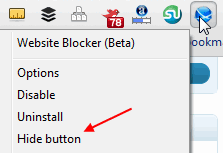
1. Hide the Website Blocker icon from the Chrome toolbar. Right click the icon and click “Hide button”
Hide button
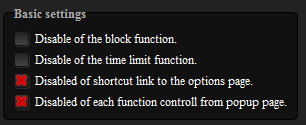
2. Disable the link from showing in the block message alert which can guide people to disable the options. Also disable the ability to edit settings from the popup alert options
block disable link
Unless people really know how to browse around into Chrome settings, identify the website blocker, experiment with its settings and disable it –  it should work to block websites for most people. Just keep Chrome as default and only browser on the computer.